
This is the second blog in our four-part blog series on how to achieve resource isolation in Apache Pulsar.
The first blog, Taking an In-Depth Look at How to Achieve Isolation in Pulsar, explains how to use the following approaches to achieve isolation in Pulsar:
- Separate Pulsar clusters
- Shared BookKeeper cluster
- Single Pulsar cluster
This blog details how to create multiple, separate pulsar clusters for isolation of resources. Because this approach segregates resources and does not share storage or local ZooKeeper with other clusters, it provides the highest level of isolation. You should use this approach if you want to isolate critical workloads (such as billing and ads). You can create multiple, separate clusters dedicated to each workload.
To help you get started quickly, this blog walks you through every step for the following parts:
- Deploy two separate Pulsar clusters
- Verify data isolation of clusters
- Synchronize and migrate data between clusters (optional)
- Scale up and down nodes (optional)
Deploy environment
The examples in this blog are developed on a macOS (version 11.2.3, memory 8G).
Software requirement
- Java 8
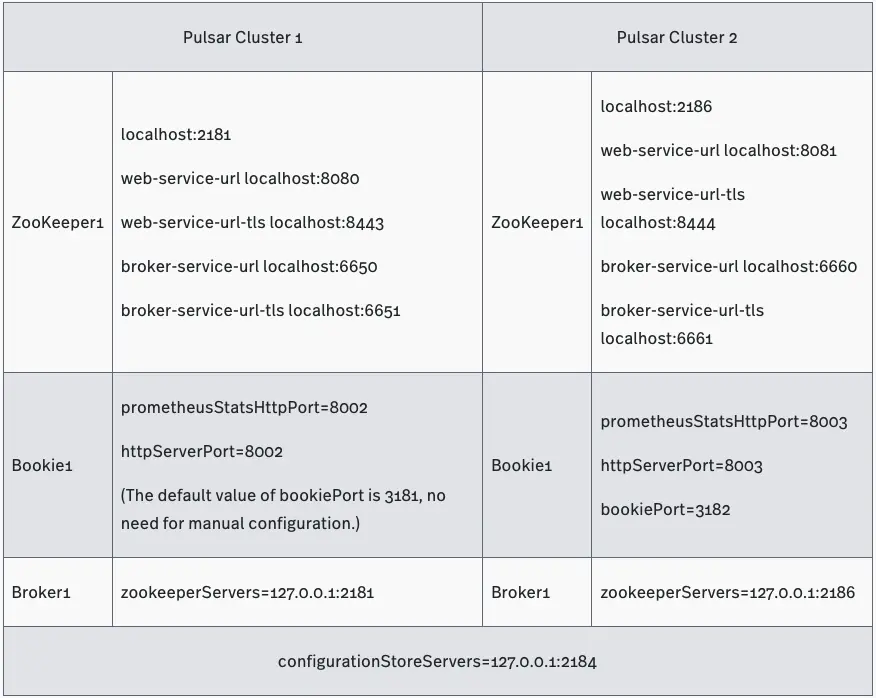
You will deploy two clusters and each of them supports the following services:
- 1 ZooKeeper
- 1 bookie
- 1 broker
Prepare deployment
- Download Pulsar and untar the tarball.In this example, Pulsar 2.7.0 is installed.
- Create empty directories using the following structure and then change the names accordingly.You can create the directories anywhere in your local environment.
Input
|-separate-clusters
    |-configuration-store
        |-zk1
    |-cluster1
        |-zk1
        |-bk1
        |-broker1
    |-cluster2
        |-zk1
        |-bk1
        |-broker1
- Copy the files to each directory you created in step 2.
- Start configuration store.Configuration store operates at the instance level and provides configuration management and task coordination across clusters. In this example, cluster1 and cluster2 share one configuration store.
Input
cd configuration-store/zk1

bin/pulsar-daemon start configuration-store
Deploy Pulsar cluster1
- Start a local ZooKeeper.For each Pulsar cluster, you need to deploy 1 local ZooKeeper to manage configurations and coordinate tasks.
Input
cd cluster1/zk1

bin/pulsar-daemon start zookeeper
- Initialize metadata.Write metadata to ZooKeeper.
Input
cd cluster1/zk1

bin/pulsar initialize-cluster-metadata \
  --cluster cluster1 \
  --zookeeper localhost:2181 \
  --configuration-store localhost:2184 \
  --web-service-url http://localhost:8080/ \
  --web-service-url-tls https://localhost:8443/ \
  --broker-service-url pulsar://localhost:6650/ \
  --broker-service-url-tls pulsar+ssl://localhost:6651/
- Deploy BookKeeper.BookKeeper provides persistent storage for messages on Pulsar. Each Pulsar broker owns its bookie. BookKeeper clusters and Pulsar clusters share the local ZooKeeper.(1) Configure bookies.Change the value of the following configurations in the cluster1/bk1/conf/bookkeeper.conf file.
allowLoopback=true
prometheusStatsHttpPort=8002
httpServerPort=8002
(2) Start bookies.
Input
cd cluster1/bk1

bin/pulsar-daemon start bookie
Check whether the bookie is started successfully.
Input
bin/bookkeeper shell bookiesanity
Output
Bookie sanity test succeeded
- Deploy brokers.(1) Configure brokers.Change the value of the following configurations in the cluster1/broker1/conf/broker.conf file.
zookeeperServers=127.0.0.1:2181
configurationStoreServers=127.0.0.1:2184
clusterName=cluster1
managedLedgerDefaultEnsembleSize=1
managedLedgerDefaultWriteQuorum=1
managedLedgerDefaultAckQuorum=1
(2) Start brokers
Input
cd cluster1/broker1

bin/pulsar-daemon start broker
Deploy Pulsar cluster2
- Deploy a local ZooKeeper.(1) Configure a local ZooKeeper.
- Change the value of the following configurations in the cluster2/zk1/conf/zookeeper.conf file.
clientPort=2186
admin.serverPort=9992
- Add the following configurations to the cluster2/zk1/conf/pulsar_env.sh file.
OPTS="-Dstats_server_port=8011"
(2) Start a local ZooKeeper.
Input
cd cluster2/zk1

bin/pulsar-daemon start zookeeper
Input
bin/pulsar initialize-cluster-metadata \
  --cluster cluster2 \
  --zookeeper localhost:2186 \
  --configuration-store localhost:2184 \
  --web-service-url http://localhost:8081/ \
  --web-service-url-tls https://localhost:8444/ \
  --broker-service-url pulsar://localhost:6660/ \
  --broker-service-url-tls pulsar+ssl://localhost:6661/
- Deploy BookKeeper.(1) Configure bookies.Change the value of the following configurations in the cluster2/bk1/conf/bookkeeper.conf file.
bookiePort=3182
zkServers=localhost:2186
allowLoopback=true
prometheusStatsHttpPort=8003
httpServerPort=8003
(2) Start bookies.
**Input**
cd cluster2/bk1

bin/pulsar-daemon start bookie
      Check whether the bookie is started successfully.

      **Input**
bin/bookkeeper shell bookiesanity
Output
Bookie sanity test succeeded
Change the value of the following configurations in the cluster2/broker1/conf/broker.conf file.
clusterName=cluster2
zookeeperServers=127.0.0.1:2186
configurationStoreServers=127.0.0.1:2184
brokerServicePort=6660
webServicePort=8081
managedLedgerDefaultEnsembleSize=1
managedLedgerDefaultWriteQuorum=1
managedLedgerDefaultAckQuorum=1
- Change the value of the following configurations in the cluster2/broker1/conf/client.conf file.
webServiceUrl=http://localhost:8081/
brokerServiceUrl=pulsar://localhost:6660/
(2) Start brokers.
Input
cd cluster2/broker1

bin/pulsar-daemon start broker
Verify data isolation of clusters
This section verifies whether the data in the two Pulsar clusters is isolated.
- Create namespace1 and assign it to cluster1.
Tip : The format of a namespace name is
/ . For more information, see Namespaces.
Input
cd cluster1/broker1

bin/pulsar-admin namespaces create -c cluster1 public/namespace1
Check the result.
Input
bin/pulsar-admin namespaces list public
Output
"public/default"
"public/namespace1"
- Set the retention policy for namespace1.
Note | If the retention policy is not set and the topic is not subscribed, the data stored on the topic is deleted automatically after a while.
Input
bin/pulsar-admin namespaces set-retention -s 100M -t 3d public/namespace1
- Create topic1 in namespace1 and write 1000 messages to this topic.
Tip | The pulsar-client is a command line tool to send and consume data. For more information, see Pulsar command line tools.
Input
bin/pulsar-client produce -m 'hello c1 to c2' -n 1000 public/namespace1/topic1

09:56:34.504 [main] INFO  org.apache.pulsar.client.cli.PulsarClientTool - 1000 messages successfully produced
Check the result.
Input
bin/pulsar-admin --admin-url http://localhost:8080 topics stats-internal public/namespace1/topic1
Output
The entriesAddedCounter parameter shows that 1000 messages are added.
{
  "entriesAddedCounter" : 1000,
  "numberOfEntries" : 1000,
  "totalSize" : 65616,
  "currentLedgerEntries" : 1000,
  "currentLedgerSize" : 65616,
  "lastLedgerCreatedTimestamp" : "2021-04-22T10:24:00.582+08:00",
  "waitingCursorsCount" : 0,
  "pendingAddEntriesCount" : 0,
  "lastConfirmedEntry" : "4:999",
  "state" : "LedgerOpened",
  "ledgers" : [ {
    "ledgerId" : 4,
    "entries" : 0,
    "size" : 0,
    "offloaded" : false
  } ],
  "cursors" : { },
  "compactedLedger" : {
    "ledgerId" : -1,
    "entries" : -1,
    "size" : -1,
    "offloaded" : false
  }
}
- Check the data stored on public/namespace1/topic1 by cluster2 (localhost:8081).
Input
bin/pulsar-admin --admin-url http://localhost:8081 topics stats-internal public/namespace1/topic1
Output
The attempt failed. The error message shows that the data stored on public/namespace1 is assigned only to cluster1. This proves that the data is isolated.
Namespace missing local cluster name in clusters list: local_cluster=cluster2 ns=public/namespace1 clusters=[cluster1]

Reason: Namespace missing local cluster name in clusters list: local_cluster=cluster2 ns=public/namespace1 clusters=[cluster1]
- Write data to public/namespace1/topic1 in cluster2.
Input
cd cluster2/broker1

bin/pulsar-client produce -m 'hello c1 to c2' -n 1000 public/namespace1/topic1
Output
The error message shows that 0 message is written. The attempt failed because namespace1 is assigned only to cluster1. This proves that the data is isolated.
12:09:50.005 [main] INFO org.apache.pulsar.client.cli.PulsarClientTool - 0 messages successfully produced
Synchronize and migrate data between clusters
After verifying that the data is isolated, you can synchronize (using geo-replication) and migrate data between clusters.
- Assign namespace1 to cluster2, that is, adding cluster2 to the cluster list of namespace1.This enables geo-replication to synchronize the data between cluster1 and cluster2.
Input
bin/pulsar-admin namespaces set-clusters --clusters cluster1,cluster2 public/namespace1
Check the result.
Input
bin/pulsar-admin namespaces get-clusters public/namespace1
Output
"cluster1"
"cluster2"
- Check whether topic1 is in cluster2.
Input
bin/pulsar-admin --admin-url http://localhost:8081 topics stats-internal public/namespace1/topic1
Output
The output shows that there are 1000 messages on cluster2/topic1. This proves that the data stored on cluster1/topic1 is replicated to cluster2 successfully.
{
  "entriesAddedCounter" : 1000,
  "numberOfEntries" : 1000,
  "totalSize" : 75616,
  "currentLedgerEntries" : 1000,
  "currentLedgerSize" : 75616,
  "lastLedgerCreatedTimestamp" : "2021-04-23T12:02:52.929+08:00",
  "waitingCursorsCount" : 1,
  "pendingAddEntriesCount" : 0,
  "lastConfirmedEntry" : "1:999",
  "state" : "LedgerOpened",
  "ledgers" : [ {
    "ledgerId" : 1,
    "entries" : 0,
    "size" : 0,
    "offloaded" : false
  } ],
  "cursors" : {
    "pulsar.repl.cluster1" : {
      "markDeletePosition" : "1:999",
      "readPosition" : "1:1000",
      "waitingReadOp" : true,
      "pendingReadOps" : 0,
      "messagesConsumedCounter" : 1000,
      "cursorLedger" : 2,
      "cursorLedgerLastEntry" : 2,
      "individuallyDeletedMessages" : "[]",
      "lastLedgerSwitchTimestamp" : "2021-04-23T12:02:53.248+08:00",
      "state" : "Open",
      "numberOfEntriesSinceFirstNotAckedMessage" : 1,
      "totalNonContiguousDeletedMessagesRange" : 0,
      "properties" : { }
    }
  },
  "compactedLedger" : {
    "ledgerId" : -1,
    "entries" : -1,
    "size" : -1,
    "offloaded" : false
  }
}
- Migrate the producer and consumer from cluster1 to cluster2.
PulsarClient pulsarClient1 = PulsarClient.builder().serviceUrl("pulsar://localhost:6650").build();
// migrate the client to cluster2 pulsar://localhost:6660
PulsarClient pulsarClient2 = PulsarClient.builder().serviceUrl("pulsar://localhost:6660").build();
- Remove cluster1 from the cluster list of namespace1.
Input
bin/pulsar-admin namespaces set-clusters --clusters cluster2 public/namespace1
Check if the data is stored on cluster1/topic1.
Input
cd cluster1/broker1

bin/pulsar-admin --admin-url http://localhost:8080 topics stats-internal public/namespace1/topic1
Output
The data is removed from cluster1/topic1 successfully since the value of numberOfEntries parameter is 0.
{
  "entriesAddedCounter" : 0,
  "numberOfEntries" : 0,
  "totalSize" : 0,
  "currentLedgerEntries" : 0,
  "currentLedgerSize" : 0,
  "lastLedgerCreatedTimestamp" : "2021-04-23T15:20:08.1+08:00",
  "waitingCursorsCount" : 1,
  "pendingAddEntriesCount" : 0,
  "lastConfirmedEntry" : "3:-1",
  "state" : "LedgerOpened",
  "ledgers" : [ {
    "ledgerId" : 3,
    "entries" : 0,
    "size" : 0,
    "offloaded" : false
  } ],
  "cursors" : {
    "pulsar.repl.cluster2" : {
      "markDeletePosition" : "3:-1",
      "readPosition" : "3:0",
      "waitingReadOp" : true,
      "pendingReadOps" : 0,
      "messagesConsumedCounter" : 0,
      "cursorLedger" : 4,
      "cursorLedgerLastEntry" : 0,
      "individuallyDeletedMessages" : "[]",
      "lastLedgerSwitchTimestamp" : "2021-04-23T15:20:08.122+08:00",
      "state" : "Open",
      "numberOfEntriesSinceFirstNotAckedMessage" : 1,
      "totalNonContiguousDeletedMessagesRange" : 0,
      "properties" : { }
    }
  },
  "compactedLedger" : {
    "ledgerId" : -1,
    "entries" : -1,
    "size" : -1,
    "offloaded" : false
  }
}
At this point, you replicated data from cluster1/topic1 to cluster2 and then removed the data from cluster1/topic1.
Scale up and down nodes
If you need to handle increasing or decreasing workloads, you can scale up or down nodes. This section demonstrates how to scale up and scale down nodes (brokers and bookies).
Broker
Scale up brokers
In this procedure, you’ll create 2 partitioned topics on cluster1/broker1 and add 2 brokers. Then, you’ll offload the data stored on partitioned topics and check the data distribution among 3 brokers.
- Check the information about brokers in cluster1.
Input
cd/cluster1/broker1

bin/pulsar-admin brokers list cluster1
Output
The output shows that broker1 is the only broker in cluster1.
"192.168.0.105:8080"
- Create 2 partitioned topics on cluster1/broker1.Create 6 partitions for partitioned-topic1 and 7 partitions for partitioned-topic2.
Input
bin/pulsar-admin topics create-partitioned-topic -p 6 public/namespace1/partitioned-topic1

bin/pulsar-admin topics create-partitioned-topic -p 7 public/namespace1/partitioned-topic2
Check the result.
Input
bin/pulsar-admin topics partitioned-lookup public/namespace1/partitioned-topic1
Output
All data of partitioned-topic1 is from broker1.
"persistent://public/namespace1/partitioned-topic1-partition-0    pulsar://192.168.0.105:6650"
"persistent://public/namespace1/partitioned-topic1-partition-1    pulsar://192.168.0.105:6650"
"persistent://public/namespace1/partitioned-topic1-partition-2    pulsar://192.168.0.105:6650"
"persistent://public/namespace1/partitioned-topic1-partition-3    pulsar://192.168.0.105:6650"
"persistent://public/namespace1/partitioned-topic1-partition-4    pulsar://192.168.0.105:6650"
"persistent://public/namespace1/partitioned-topic1-partition-5    pulsar://192.168.0.105:6650"
Input
bin/pulsar-admin topics partitioned-lookup public/namespace1/partitioned-topic2
Output
All data of partitioned-topic2 is from broker1.
"persistent://public/namespace1/partitioned-topic2-partition-0    pulsar://192.168.0.105:6650"
"persistent://public/namespace1/partitioned-topic2-partition-1    pulsar://192.168.0.105:6650"
"persistent://public/namespace1/partitioned-topic2-partition-2    pulsar://192.168.0.105:6650"
"persistent://public/namespace1/partitioned-topic2-partition-3    pulsar://192.168.0.105:6650"
"persistent://public/namespace1/partitioned-topic2-partition-4    pulsar://192.168.0.105:6650"
"persistent://public/namespace1/partitioned-topic2-partition-5    pulsar://192.168.0.105:6650"
"persistent://public/namespace1/partitioned-topic2-partition-6    pulsar://192.168.0.105:6650"
- Add broker2 and broker3.
(1) Prepare for deployment.
Create two empty repositories (broker2 and broker3) under cluster1 repository. Copy the untarred files in the Pulsar repository to these two repositories.
|-separate-clusters
    |-configuration-store
        |-zk1
    |-cluster1
        |-zk1
        |-bk1
        |-broker1
        |-broker2
        |-broker3
    |-cluster2
        |-zk1
        |-bk1
        |-broker1
(2) Deploy brokers.
(2.a) Configure brokers.
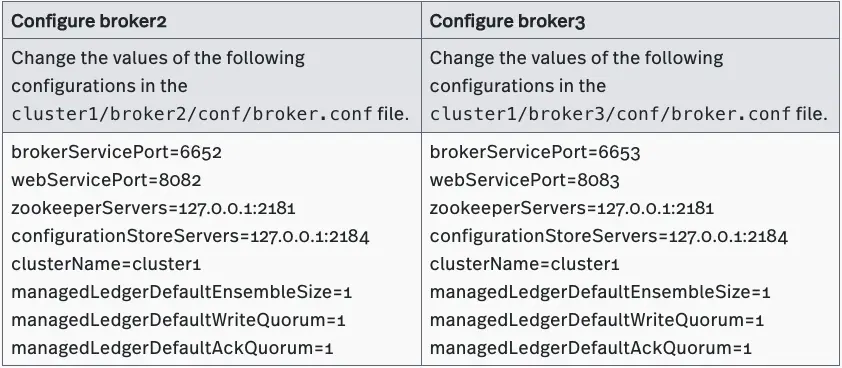
(2.b) Start brokers.

(2.c) Check the information about the running brokers in cluster1.
Input
bin/pulsar-admin brokers list cluster1
Output
"192.168.0.105:8080" // broker1
"192.168.0.105:8082" // broker2
"192.168.0.105:8083" // broker3
- Offload the data stored on namespace1/partitioned-topic1.
Input
bin/pulsar-admin namespaces unload public/namespace1
Check the result.
(1) Check the distribution of data stored on partitioned-topic1.
Input
bin/pulsar-admin topics partitioned-lookup public/namespace1/partitioned-topic1
Output
The output shows that the data stored on partitioned-topic1 is distributed evenly on broker1, broker2, and broker3.
"persistent://public/namespace1/partitioned-topic1-partition-0    pulsar://192.168.0.105:6650"
"persistent://public/namespace1/partitioned-topic1-partition-1    pulsar://192.168.0.105:6653"
"persistent://public/namespace1/partitioned-topic1-partition-2    pulsar://192.168.0.105:6652"
"persistent://public/namespace1/partitioned-topic1-partition-3    pulsar://192.168.0.105:6653"
"persistent://public/namespace1/partitioned-topic1-partition-4    pulsar://192.168.0.105:6650"
"persistent://public/namespace1/partitioned-topic1-partition-5    pulsar://192.168.0.105:6653"
(2) Check the distribution of data stored on partitioned-topic2.
Input
bin/pulsar-admin topics partitioned-lookup public/namespace1/partitioned-topic2
The output shows that the data stored on partitioned-topic2 is distributed evenly on broker1, broker2, and broker3.
Output
"persistent://public/namespace1/partitioned-topic2-partition-0    pulsar://192.168.0.105:6653"
"persistent://public/namespace1/partitioned-topic2-partition-1    pulsar://192.168.0.105:6650"
"persistent://public/namespace1/partitioned-topic2-partition-2    pulsar://192.168.0.105:6653"
"persistent://public/namespace1/partitioned-topic2-partition-3    pulsar://192.168.0.105:6652"
"persistent://public/namespace1/partitioned-topic2-partition-4    pulsar://192.168.0.105:6653"
"persistent://public/namespace1/partitioned-topic2-partition-5    pulsar://192.168.0.105:6650"
"persistent://public/namespace1/partitioned-topic2-partition-6    pulsar://192.168.0.105:6653"
Scale down brokers
Tip The following steps continue from the previous section “Scale up brokers”.
In this procedure, you’ll stop 1 broker in cluster1 and check how the data stored on the partitioned topics is distributed among other brokers.
- Stop broker3.
Input
cd/cluster1/broker3

bin/pulsar-daemon stop broker
Check the result.
Input
bin/pulsar-admin brokers list cluster1
Output
The output shows that only broker1 and broker2 are running in cluster1.
"192.168.0.105:8080" // broker1
"192.168.0.105:8082" // broker2
- Check the distribution of data stored on partitioned-topic1.
Input
bin/pulsar-admin topics partitioned-lookup public/namespace1/partitioned-topic1
Output
The output shows that the data stored on partitioned-topic1 is distributed evenly between broker1 and broker2, which means that the data from broker3 is redistributed.
"persistent://public/namespace1/partitioned-topic1-partition-0    pulsar://192.168.0.105:6650"
"persistent://public/namespace1/partitioned-topic1-partition-1    pulsar://192.168.0.105:6650"
"persistent://public/namespace1/partitioned-topic1-partition-2    pulsar://192.168.0.105:6652"
"persistent://public/namespace1/partitioned-topic1-partition-3    pulsar://192.168.0.105:6652"
"persistent://public/namespace1/partitioned-topic1-partition-4    pulsar://192.168.0.105:6650"
"persistent://public/namespace1/partitioned-topic1-partition-5    pulsar://192.168.0.105:6650"
Similarly, the data stored on partitioned-topic2 is distributed evenly between broker1 and broker2.
Input
bin/pulsar-admin topics partitioned-lookup public/namespace1/partitioned-topic2
Output
"persistent://public/namespace1/partitioned-topic2-partition-0    pulsar://192.168.0.105:6650"
"persistent://public/namespace1/partitioned-topic2-partition-1    pulsar://192.168.0.105:6650"
"persistent://public/namespace1/partitioned-topic2-partition-2    pulsar://192.168.0.105:6652"
"persistent://public/namespace1/partitioned-topic2-partition-3    pulsar://192.168.0.105:6652"
"persistent://public/namespace1/partitioned-topic2-partition-4    pulsar://192.168.0.105:6650"
"persistent://public/namespace1/partitioned-topic2-partition-5    pulsar://192.168.0.105:6650"
"persistent://public/namespace1/partitioned-topic2-partition-6    pulsar://192.168.0.105:6652"
Bookie
Scale up bookies
In this procedure, you’ll add 2 bookies to cluster1/bookkeeper1. Then, you’ll write data to topic1 and check whether the replicas are saved.
- Check the information about bookies in cluster1.
Input
cd cluster1/bk1

bin/bookkeeper shell listbookies -rw -h
Output
The output shows that broker1 is the only broker in cluster1.
12:31:34.933 [main] INFO  org.apache.bookkeeper.tools.cli.commands.bookies.ListBookiesCommand - ReadWrite Bookies :
12:31:34.946 [main] INFO  org.apache.bookkeeper.tools.cli.commands.bookies.ListBookiesCommand - BookieID:192.168.0.105:3181, IP:192.168.0.105, Port:3181, Hostname:192.168.0.105
- Allow 3 bookies to serve.
Change the values of the following configurations in the cluster1/broker1/conf/broker.conf file.
managedLedgerDefaultEnsembleSize=3 // specify the number of bookies to use when creating a ledger
managedLedgerDefaultWriteQuorum=3 // specify the number of copies to store for each message
managedLedgerDefaultAckQuorum=2  // specify the number of guaranteed copies (acks to wait before writing is completed)
- Restart broker1 to enable the configurations.
Input
cd cluster1/broker1

bin/pulsar-daemon stop broker

bin/pulsar-daemon start broker
- Set the retention policy for the messages in public/default.
Note If the retention policy is not set and the topic is not subscribed, the data of the topic is deleted automatically after a while.
Input
cd cluster1/broker1

bin/pulsar-admin namespaces set-retention -s 100M -t 3d public/default
- Create topic1 in public/default and write 100 messages to this topic.
Input
bin/pulsar-client produce -m 'hello' -n 100 topic1
Output
The data is not written successfully because of the insufficient number of bookies.
···

12:40:38.886 [pulsar-client-io-1-1] WARN  org.apache.pulsar.client.impl.ClientCnx - [id: 0x56f92aff, L:/192.168.0.105:53069 - R:/192.168.0.105:6650] Received error from server: org.apache.bookkeeper.mledger.ManagedLedgerException: Not enough non-faulty bookies available

...

12:40:38.886 [main] ERROR org.apache.pulsar.client.cli.PulsarClientTool - Error while producing messages

…

12:40:38.890 [main] INFO  org.apache.pulsar.client.cli.PulsarClientTool - 0 messages successfully produced
- Add bookie2 and bookie3.
(1) Prepare for deployment.
Create two empty repositories (bk2 and bk3) under cluster1 repository. Copy the untarred files in Pulsar repository to these two repositories.
|-separate-clusters
    |-configuration-store
        |-zk1
    |-cluster1
        |-zk1
        |-bk1
        |-bk2
        |-bk3
        |-broker1
    |-cluster2
        |-zk1
        |-bk1
        |-broker1
(2) Deploy bookies.
(2.a) Configure bookies.
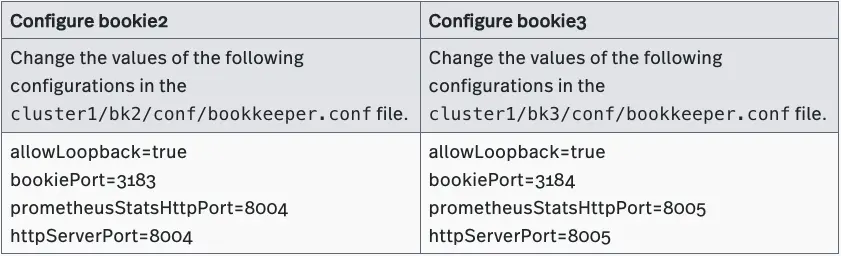
(2.b) Start bookies.
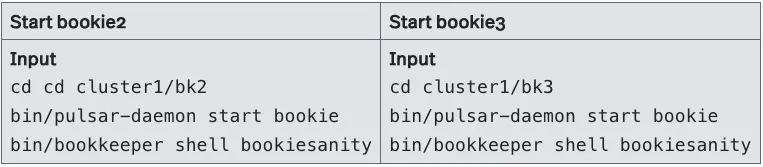
(2.c) Check the running bookies in cluster1.
Input
bin/bookkeeper shell listbookies -rw -h
Output
All three bookies are running in cluster1: bookie1:192.168.0.105:3181 bookie2:192.168.0.105:3183 bookie3:192.168.0.105:3184
12:12:47.574 [main] INFO  org.apache.bookkeeper.tools.cli.commands.bookies.ListBookiesCommand - BookieID:192.168.0.105:3183, IP:192.168.0.105, Port:3183, Hostname:192.168.0.105
12:12:47.575 [main] INFO  org.apache.bookkeeper.tools.cli.commands.bookies.ListBookiesCommand - BookieID:192.168.0.105:3184, IP:192.168.0.105, Port:3184, Hostname:192.168.0.105
12:12:47.576 [main] INFO  org.apache.bookkeeper.tools.cli.commands.bookies.ListBookiesCommand - BookieID:192.168.0.105:3181, IP:192.168.0.105, Port:3181, Hostname:192.168.0.105
- Set the retention policy for messages in public/default.
Note If the retention policy is not set and the topic is not subscribed, the data stored on the topic is deleted automatically after a while.
Input
cd cluster1/broker1

bin/pulsar-admin namespaces set-retention -s 100M -t 3d public/default
- Create topic1 in public/default and write 100 messages to this topic.
Input
bin/pulsar-client produce -m 'hello' -n 100 topic1
Output
The messages are written successfully.
...
12:17:40.222 [main] INFO  org.apache.pulsar.client.cli.PulsarClientTool - 100 messages successfully produced
- Check the information about topic1.
Input
bin/pulsar-admin topics stats-internal topic1
Output
The output shows that the data stored on topic1 is saved in the ledger with ledgerId 5.
{
  "entriesAddedCounter" : 100,
  "numberOfEntries" : 100,
  "totalSize" : 5500,
  "currentLedgerEntries" : 100,
  "currentLedgerSize" : 5500,
  "lastLedgerCreatedTimestamp" : "2021-05-11T12:17:38.881+08:00",
  "waitingCursorsCount" : 0,
  "pendingAddEntriesCount" : 0,
  "lastConfirmedEntry" : "5:99",
  "state" : "LedgerOpened",
  "ledgers" : [ {
    "ledgerId" : 5,
    "entries" : 0,
    "size" : 0,
    "offloaded" : false
  } ],
  "cursors" : { },
  "compactedLedger" : {
    "ledgerId" : -1,
    "entries" : -1,
    "size" : -1,
    "offloaded" : false
  }
}
- Check in which bookies the ledger with ledgerId 5 is saved.
Input
bin/bookkeeper shell ledgermetadata -ledgerid 5
Output
As configured previously, the ledger with ledgerId 5 is saved on bookie1 (3181), bookie2 (3181), and bookie3 (3184).
...
12:23:17.705 [main] INFO  org.apache.bookkeeper.tools.cli.commands.client.LedgerMetaDataCommand - ledgerID: 5
12:23:17.714 [main] INFO  org.apache.bookkeeper.tools.cli.commands.client.LedgerMetaDataCommand - LedgerMetadata{formatVersion=3, ensembleSize=3, writeQuorumSize=3, ackQuorumSize=2, state=OPEN, digestType=CRC32C, password=base64:, ensembles={0=[192.168.0.105:3184, 192.168.0.105:3181, 192.168.0.105:3183]}, customMetadata={component=base64:bWFuYWdlZC1sZWRnZXI=, pulsar/managed-ledger=base64:cHVibGljL2RlZmF1bHQvcGVyc2lzdGVudC90b3BpYzE=, application=base64:cHVsc2Fy}}
…
Scale down bookies
Tip The following steps continue from the previous section “Scale up bookies”.
In this procedure, you’ll remove 2 bookies. Then, you’ll write data to topic2 and check where the data is saved.
- Allow 1 bookie to serve.Change the values of the following configurations in the cluster1/broker1/conf/broker.conf file.
managedLedgerDefaultEnsembleSize=1 // specify the number of bookies to use when creating a ledger
managedLedgerDefaultWriteQuorum=1 // specify the number of copies to store for each message
managedLedgerDefaultAckQuorum=1  // specify the number of guaranteed copies (acks to wait before writing is completed)
- Restart broker1 to enable the configurations.
Input
cd cluster1/broker1

bin/pulsar-daemon stop broker

bin/pulsar-daemon start broker
- Check the information about bookies in cluster1.
Input
cd cluster1/bk1

bin/bookkeeper shell listbookies -rw -h
Output
All three bookies are running in cluster1, including bookie1 (3181), bookie2 (3183), and bookie3 (3184).
...
15:47:41.370 [main] INFO  org.apache.bookkeeper.tools.cli.commands.bookies.ListBookiesCommand - ReadWrite Bookies :
15:47:41.382 [main] INFO  org.apache.bookkeeper.tools.cli.commands.bookies.ListBookiesCommand - BookieID:192.168.0.105:3183, IP:192.168.0.105, Port:3183, Hostname:192.168.0.105
15:47:41.383 [main] INFO  org.apache.bookkeeper.tools.cli.commands.bookies.ListBookiesCommand - BookieID:192.168.0.105:3184, IP:192.168.0.105, Port:3184, Hostname:192.168.0.105
15:47:41.384 [main] INFO  org.apache.bookkeeper.tools.cli.commands.bookies.ListBookiesCommand - BookieID:192.168.0.105:3181, IP:192.168.0.105, Port:3181, Hostname:192.168.0.105
…
- Stop bookie2 and bookie3.
Tip For more information about how to stop bookies, see Decommission Bookies.
Input
cd cluster1/bk2

bin/bookkeeper shell listunderreplicated

bin/pulsar-daemon stop bookie

bin/bookkeeper shell decommissionbookie
Input
cd cluster1/bk3

bin/bookkeeper shell listunderreplicated

bin/pulsar-daemon stop bookie

bin/bookkeeper shell decommissionbookie
- Check the information about bookies in cluster1.
Input
cd cluster1/bk1

bin/bookkeeper shell listbookies -rw -h
Output
The output shows that bookie1 (3181) is the only running bookie in cluster1.
...
16:05:28.690 [main] INFO  org.apache.bookkeeper.tools.cli.commands.bookies.ListBookiesCommand - ReadWrite Bookies :
16:05:28.700 [main] INFO  org.apache.bookkeeper.tools.cli.commands.bookies.ListBookiesCommand - BookieID:192.168.0.105:3181, IP:192.168.0.105, Port:3181, Hostname:192.168.0.105
...
- Set the retention policy for the messages in public/default.
Note If the retention policy is not set and the topic is not subscribed, the data stored on the topic is deleted automatically after a while.
Input
cd cluster1/broker1

bin/pulsar-admin namespaces set-retention -s 100M -t 3d public/default
- Create topic2 in public/default and write 100 messages to this topic.
Input
bin/pulsar-client produce -m 'hello' -n 100 topic2
Output
The data is written successfully
...
16:06:59.448 [main] INFO  org.apache.pulsar.client.cli.PulsarClientTool - 100 messages successfully produced
- Check the information about topic2.
Input
bin/pulsar-admin topics stats-internal topic2
Output
The data stored on topic2 is saved in the ledger with ledgerId 7.
{
  "entriesAddedCounter" : 100,
  "numberOfEntries" : 100,
  "totalSize" : 5400,
  "currentLedgerEntries" : 100,
  "currentLedgerSize" : 5400,
  "lastLedgerCreatedTimestamp" : "2021-05-11T16:06:59.058+08:00",
  "waitingCursorsCount" : 0,
  "pendingAddEntriesCount" : 0,
  "lastConfirmedEntry" : "7:99",
  "state" : "LedgerOpened",
  "ledgers" : [ {
    "ledgerId" : 7,
    "entries" : 0,
    "size" : 0,
    "offloaded" : false
  } ],
  "cursors" : { },
  "compactedLedger" : {
    "ledgerId" : -1,
    "entries" : -1,
    "size" : -1,
    "offloaded" : false
  }
}
- Check where the ledger with ledgerId 7 is saved.
Input
bin/bookkeeper shell ledgermetadata -ledgerid 7
Output
The ledger with ledgerId 7 is saved on bookie1 (3181).
...
16:11:28.843 [main] INFO  org.apache.bookkeeper.tools.cli.commands.client.LedgerMetaDataCommand - ledgerID: 7
16:11:28.846 [main] INFO  org.apache.bookkeeper.tools.cli.commands.client.LedgerMetaDataCommand - LedgerMetadata{formatVersion=3, ensembleSize=1, writeQuorumSize=1, ackQuorumSize=1, state=OPEN, digestType=CRC32C, password=base64:, ensembles={0=[192.168.0.105:3181]}, customMetadata={component=base64:bWFuYWdlZC1sZWRnZXI=, pulsar/managed-ledger=base64:cHVibGljL2RlZmF1bHQvcGVyc2lzdGVudC90b3BpYzM=, application=base64:cHVsc2Fy}}
...
Conclusion
This is the second blog in the series on configuring isolation in Apache Pulsar. Now you should now know how to:
- Deploy two separate Pulsar clusters
- Verify data isolation of clusters
- Synchronize and migrate data between clusters
- Scale up and down nodes (brokers and bookies)
The next blog will discuss how to configure Pulsar isolation in a shared BookKeeper cluster. Coming soon!
Further reading
If you’re interested in Pulsar isolation policy, feel free to check the following resources out!
- For beginners: Pulsar Isolation Policy - User Guide
- For advanced users: Taking an In-Depth Look at How to Achieve Isolation in Pulsar